Verified on October 10, 2026, against the live server and the code behind it.
VULK runs a remote MCP server. Add one address to Claude, Claude Code or another assistant that supports remote MCP servers, sign in to VULK once, and the assistant can list your projects, read their files, check your credits, and start or continue a build for you. You do not install anything or paste an API key.
The address is:
https://app.vulk.dev/mcp
This post lists every tool the server exposes and shows the live responses that prove it is running.
Proof that it is live
Anyone can check the server without an account. Ask it for its sign-in metadata:
curl https://app.vulk.dev/.well-known/oauth-protected-resource
On October 10, 2026 it answered:
{
  "resource": "https://app.vulk.dev/mcp",
  "authorization_servers": ["https://app.vulk.dev"],
  "scopes_supported": ["projects.read", "usage.read", "projects.write"],
  "bearer_methods_supported": ["header"],
  "resource_name": "VULK"
}
Call the server itself without a token and it refuses with a 401 and a WWW-Authenticate header that points the client to that metadata. That header is how an MCP client discovers that it needs to sign the person in. The same server also answers at https://mcp.vulk.dev/mcp.
How the sign-in works
The connection uses standard OAuth, with the discovery and registration steps the MCP specification defines:
- The client registers itself automatically through a registration endpoint, so you never copy a client ID.
- The authorization code flow requires PKCE with S256, and clients authenticate with no secret, which is the right model for apps that run on your machine.
- Access is renewed with refresh tokens, but a connection lasts 90 days at most, however often it renews. After that you approve it again.
- The server speaks the MCP protocol versions 2025-06-18, 2025-03-26 and 2024-11-05.
When you connect, VULK shows a consent screen that lists exactly what the assistant will be able to do. An assistant that asks only to read gets only the read permissions, and the screen tells you the connection cannot create, change, publish or delete anything. One caution we print on that screen too: the name shown is the name the app gave itself, which VULK cannot verify, so only approve a connection you just started.
You can see every connected app under Settings › Integrations › Connected apps and remove one at any time. It loses access immediately. You can have up to 50 connected apps and 20 approval screens waiting at once.
The nine tools
Six tools only read. Three can start, continue or stop work.
| Tool | Permission | What it does |
|---|---|---|
list_projects |
projects.read | Your projects, newest first, 20 by default and up to 50 |
get_project |
projects.read | One project: title, versions built, file count, last status, preview and live addresses |
get_project_files |
projects.read | The file list of the delivered version (up to 500 entries), or the text of one file |
get_usage |
usage.read | Your plan, renewal date, credit balance and recent generation |
open_billing |
none | A link to your billing page; it buys nothing |
get_operation |
projects.read | Progress, questions and links for one build request |
create_project |
projects.write | Starts a new project from your brief |
continue_project |
projects.write | Sends the next instruction to a project you already have |
stop_operation |
projects.write | Asks VULK to stop one request |
Each tool declares the permission it needs, and the server refuses a call made without it. A read-only connection is not even shown the build tools.
How a build runs from an assistant
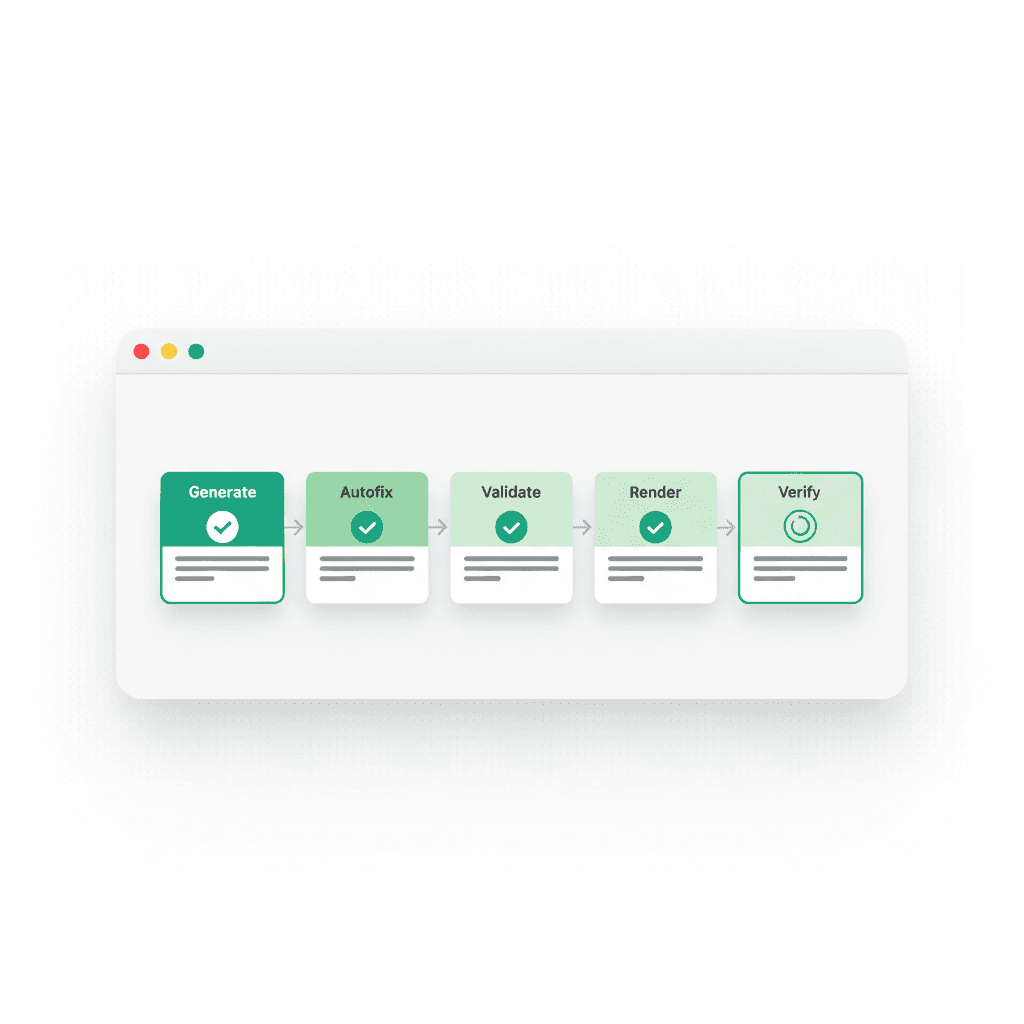
Building takes minutes, not milliseconds, so it is split in two:
- The assistant calls
create_projectwith your brief, up to 8,000 characters, and arequest_id, a fresh UUID for this one action. - VULK checks your plan and credits and answers with a receipt: the request id, the project id and a link to the editor. A receipt means the build started, not that it finished.
- The assistant calls
get_operationwith the samerequest_iduntil the work is done, passing on any question VULK asks you.
If a response is lost, the assistant retries with the same request_id and the same arguments, and VULK treats it as the same request instead of starting and charging a second one. If VULK has not confirmed a request within about 20 seconds, the answer says unconfirmed and the assistant reads it back with get_operation rather than guessing.
The project that comes out is an ordinary VULK project. It appears in your account, and you can open it in the editor at any time.
Built-in safeguards
Some lines are drawn on purpose, in the code and not only in the docs:
- No tool publishes a site. Publishing stays in the editor, where you can see what goes live.
- No tool buys credits or changes your plan.
create_projectandcontinue_projectspend credits your plan already includes, exactly as the same request typed in the editor would. If the balance cannot cover it, VULK refuses and says why. - No tool deletes a project. An instruction sent with
continue_projectcan change or remove files inside a project, as the same request typed in the editor would, but no tool removes the project itself.
Answers built for models
An assistant pays for every byte a tool returns, so the answers are bounded and say when they are cut: a project list stops at 50, a file list at 500 entries, and a single file at 200,000 characters, with a truncated flag when it happens. Every result comes twice, as text for any client and as structured data for clients on the 2025-06-18 protocol, and every tool publishes the exact shape of that data as an output schema, held to it by a test. Each tool also carries a human-readable title and read-only, destructive and idempotent hints.
Failures come back as tool results the model can read, such as "no such file, list the files first", rather than protocol errors that end the conversation.
Setting it up
Claude (web and desktop): open Customize, then Connectors, add a custom connector with the address above, then choose Connect and approve in the VULK window that opens.
Claude Code:
claude mcp add --transport http vulk https://app.vulk.dev/mcp
Then run /mcp, choose vulk and sign in when the browser opens.
Other assistants: add the same address as a remote HTTP MCP server in any client that supports remote servers with sign-in. The client opens VULK in your browser for approval. The step-by-step guide is in the MCP documentation.
FAQ
Do I need an API key to use VULK from Claude?
No. The connector at https://app.vulk.dev/mcp uses a sign-in. You approve the connection once in VULK, and the assistant renews its own access for up to 90 days.
Does building from Claude cost more than building in the editor?
No. create_project and continue_project use the same engine, plan and credits as the same request typed in the editor.
Which plans can use the connector?
Any VULK account can connect. Building spends your plan's credits, and reading project files needs source export, which every paid plan includes.
How do I disconnect an assistant?
Open Settings › Integrations › Connected apps and remove it. It loses access straight away.